 SplitTrack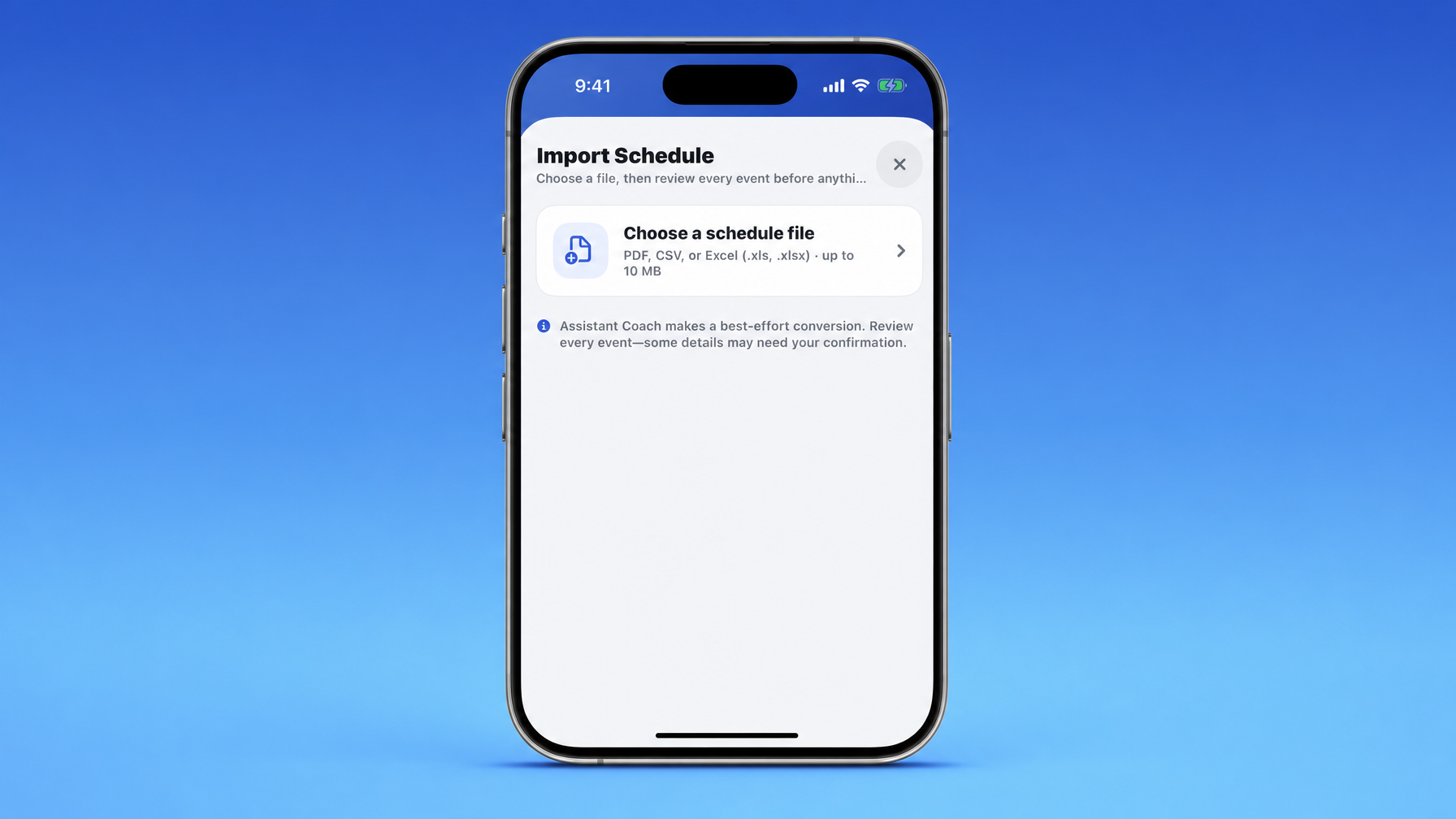
You already have a season schedule or training plan. You should not rebuild it one event at a time. From the Schedule tab, open Import Schedule, choose a PDF, CSV, or Excel file (up to 10 MB), and Assistant Coach drafts the whole thing into Split Track events and workouts. You scroll the familiar schedule UI, fix anything off, map training groups, drop junk rows, then confirm. Only then does the batch go live. Built for high school track and field and cross country coaches who plan in spreadsheets and live in the app.
Most coaches do not start the season in a blank calendar. You start with a Google Sheet, an Excel workbook from last year, a PDF the head coach emailed in July, or a table someone printed and highlighted.
The painful part is the translation: date, title, group, location, workout, next row, again, for dozens or hundreds of lines.
That is what AI-powered schedule import is for.
Inside Split Track, from the Schedule tab, open Import Schedule. The screen says it straight: choose a file, then review every event before anything is created. Tap Choose a schedule file (PDF, CSV, or Excel .xls / .xlsx, up to 10 MB). Assistant Coach reads the whole file and proposes a complete team schedule.
Same spirit as Assistant Coach: speed with a confirm step, not silent autopilot. The in-app note is honest: Assistant Coach makes a best-effort conversion. Review every event. Some details may need your confirmation.
How it works
- Open Schedule.
- Open Import Schedule.
- Tap Choose a schedule file and upload a PDF, CSV, or Excel spreadsheet (up to 10 MB).
- Assistant Coach analyzes the document end to end.
- You get a scrollable review of every proposed event in the normal schedule interface.
- You edit, map groups, exclude junk, then confirm.
- Split Track creates the events and associated workout data in one batch.
During analysis, the AI looks for:
- Practices, meets, strength sessions, meetings, and other dated events
- Dates, times, locations, titles, and notes
- Training groups such as Varsity, Development, and Junior Lions
- Group-specific workouts and activities
- Repeated structures and activity sets
- Days or rows that should not become calendar events
It converts that into Split Track’s existing event and workout structures. When it can, it matches imported workout content to activities already in your library. Group-specific differences stay group-specific. The import does not flatten everything into one generic note field.
Supported files
Right now Split Track accepts (up to 10 MB):
- CSV
- Excel (
.xls,.xlsx)
Import is best-effort, same as the in-app copy. Schedules come in a lot of shapes. Clear tables, consistent labels, and text-based PDFs usually work best. Scanned image-only PDFs and messy free-form layouts will need more hand cleanup in the review step. That is expected, not a failure of the feature.
Review before anything is created
Nothing lands on the live schedule until you say so.
In review you can:
- Scroll events grouped by date
- Confirm the assigned training group
- Open an event’s detail view
- Fix dates, times, locations, and other fields
- Review structured workout activities
- Map imported groups to training groups you already have
- Create training groups that are genuinely missing
- Exclude events that should not import
Only after you confirm the finished batch does Split Track create the events and their workout data. Same reliability path as building events the normal way, without the repetitive typing.
Why this beats manual entry
A full-season plan can mean dozens or hundreds of individual events. Manual entry means copying dates, titles, groups, locations, and workout lines into separate forms over and over.
Import handles the repetitive translation. You keep the judgment.
What you get:
- Time back: move a season plan into the app in minutes instead of an evening of form-filling
- Group-aware schedules: different work for Varsity, Development, Junior Lions, or whatever you run
- Real workout structure: activities become usable workout content, not paste dumped into notes
- Fewer copy mistakes: less chance of the wrong date or half a workout stuck on the wrong day
- One shape in the app: varied source docs land in the same Split Track schedule and workout model
- Safe batch create: full review and edit before the live calendar changes
- Keep planning where you plan: finish the spreadsheet or PDF, then bring it in when you are ready
What this is not
- Not a promise that every file imports perfectly with zero edits
- Not a way to skip reviewing meets, bus times, or who is on which group
- Not a replacement for how you coach workouts, only a faster path into the system athletes and parents already open
- Not limited to one sport season: the same flow covers track and field and cross country planning docs
We would rather you fix three rows in review than trust a black box that writes straight to production.
How to try it
- Update Split Track on iOS or Android.
- Open Schedule → Import Schedule.
- Choose a schedule file (PDF, CSV, or Excel, up to 10 MB).
- Walk the review list by date.
- Map groups, edit details, exclude what does not belong.
- Confirm the batch only when it looks right.
New here? Read We Built This for You, Coach and the coach’s guide to track and field and cross country team management software. First month free at getsplittrack.com.
Your season already lives in a file. It should not take another full week to live in the app.
Wes